Minecraft Image Converter
Use Minecraft Image Converter to turn photos, logos, and artwork into Minecraft blocks with a live block grid preview, block counts, PNG export, and optional .schem export.
Converter
Upload, tune, preview, export
Drag & drop a file here
PNG, JPG, JPEG, and WebP are supported. Your file is processed locally in your browser and never sent to a server.
From original to block grid
Try an example and see how each source becomes a block grid.
Original

Block art
Creeper face
Wool palette · 32 blocks wide
Original

Block art
Mountain landscape
Full Blocks · dithering · 64 wide
Original
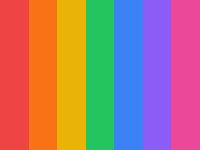
Block art
Color gradient
Concrete palette · 48 blocks wide
How it works
How the Minecraft Image Converter works
The flow stays practical: upload once, tune the block grid, check materials, then take the reference into your build.
- 01
Upload your image
PNG, JPG, or WebP. Stays on your device.
local file
- 02
Choose Minecraft block size and palette
16 to 128 blocks wide.
4 palettes
- 03
Preview the Minecraft block grid
see counts, block names, and the build list.
live preview
- 04
Export PNG or .schem
download a reference or WorldEdit-ready schematic.
build-ready
Why use this converter
Why builders choose Minecraft Image Converter
Runs entirely in your browser
Your image stays on your device. No upload queue, account, or server storage.
Block counts for every build
See exact block counts by type before you place a single block.
4 block palettes
Choose Wool, Concrete, Terracotta, or Full Blocks for your build style.
Floyd-Steinberg dithering
Use dithering for smoother photos, or turn it off for flat logos.
PNG export
Export a block grid PNG reference with grid lines on or off.
Free, no watermark
Turn a photo or design into blocks and export PNG for free.
Who uses it
Pixel art for every playstyle
Survival mode builders
Know how many Minecraft blocks to collect before you start.
Creative mode architects
Turn a reference into a pixel art plan in seconds.
Server build teams
Share the PNG reference and block grid with your team.
Frequently Asked Questions
Answers about block counts, browser privacy, supported formats, palettes, exports, and edition support.
01Is this Minecraft image converter free?
Yes. You can convert an image to Minecraft blocks for free, with no sign-up or watermark.
02What does Minecraft Image Converter do?
It turns your source into a block grid by matching each cell to the nearest available block color.
03Can I convert a photo into Minecraft blocks for free?
Yes. Upload a photo or image, preview the Minecraft block grid, then export PNG or .schem without an account.
04Does my file stay on my device?
Yes. Conversion runs entirely in your browser using the Canvas API. No file data is sent to any server.
05Which file formats are supported?
PNG, JPG, JPEG, and WebP images are supported.
06What is dithering and should I use it?
Dithering (Floyd-Steinberg) blends colors across block boundaries for smoother gradients. Good for photos and complex images. Turn it off for flat designs and solid-color logos.
07How accurate are the block colors?
Each pixel area is matched to the nearest available block color using CIE Lab color distance, which is closer to human perception than plain RGB. Results depend on the palette you choose.
08Does it work for Bedrock Edition?
Current palettes are based on Java Edition blocks. Bedrock compatibility is planned for a future update.
09Can I export a schematic file?
Yes. Export .schem downloads a Sponge schematic v3 file for a one-block-thick vertical wall build that can be imported with tools such as WorldEdit.
More Minecraft Image Tools
Minecraft Image to Blocks
Convert any image into a Minecraft block grid.
Minecraft Pixel Art Generator
Generate Minecraft pixel art from any image.
Image to Minecraft Schematic
Export a WorldEdit-ready .schem file.
Minecraft Map Art Generator
Build map art with Minecraft map colors.
Minecraft Mural Generator
Turn any image into a Minecraft wall mural.